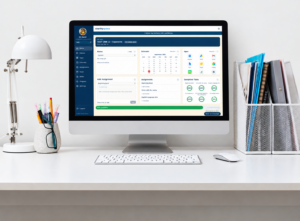
Welcome to your Clarity Space® Classes Dashboard—your home base for school. Everything you need to stay organized, keep track of your work, and see your progress is brought together in one simple space.
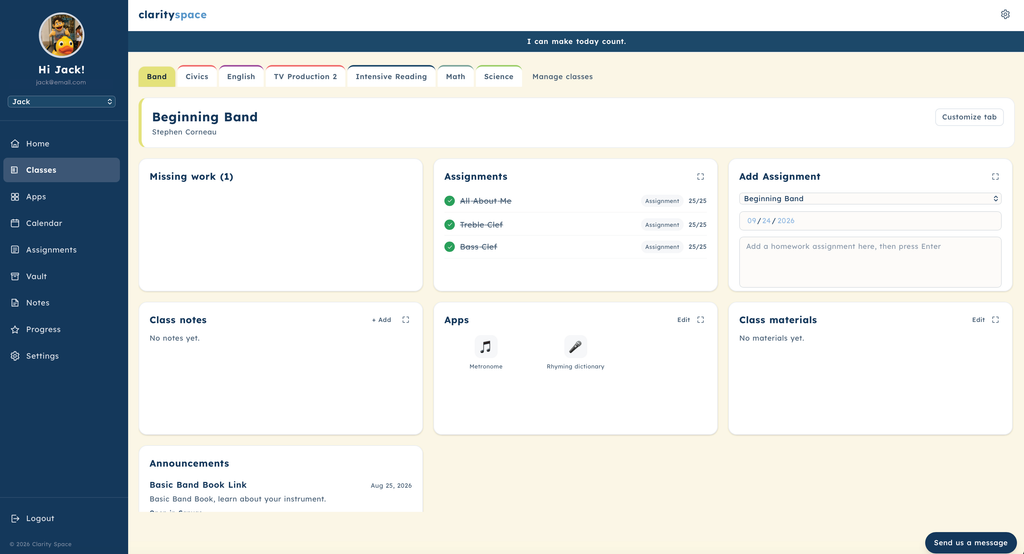
Your dashboard includes helpful widgets designed to make managing schoolwork easier and less overwhelming. Here’s what you’ll find:
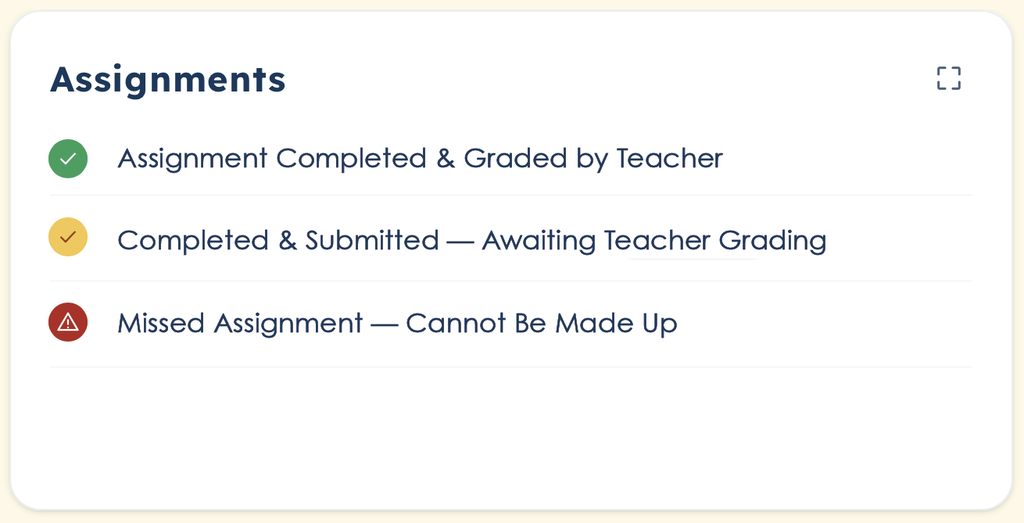
The Assignments widget gives you an at-a-glance view of your work for each class. Color coding makes it easy to understand the status of your assignments without having to sort through every detail.
With one quick look, you can see what you’ve finished, what has been graded, and what may need your attention.
Know about an assignment that isn’t showing up in your list? No problem.
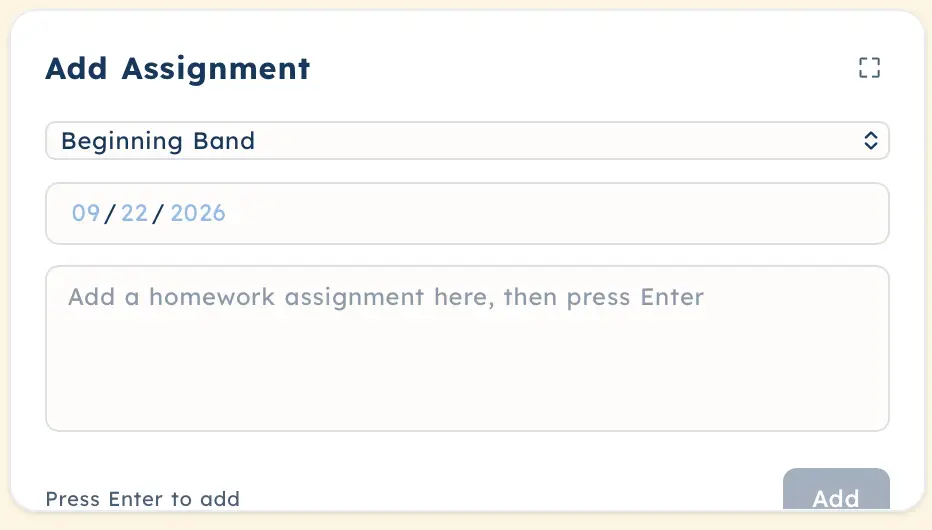
Use Add Assignment to select your class, enter the due date, and add the assignment details. Select Add, and it will appear in your Assignments widget.
It’s a simple way to make sure nothing slips through the cracks.
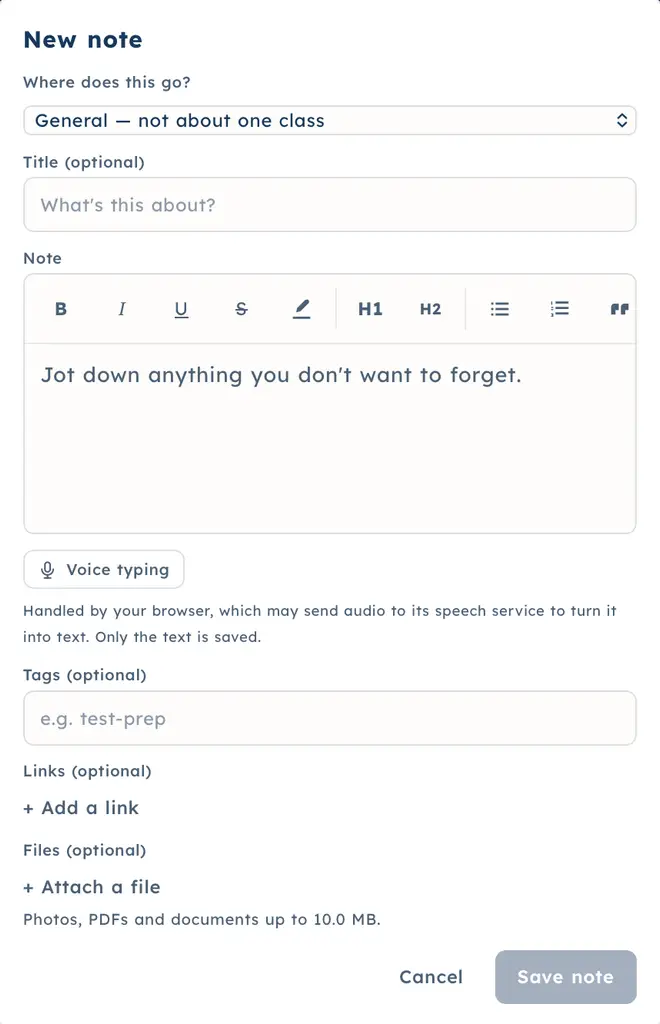
The Notes widget gives you a place to keep important information from class. Select + Add, choose your class, and add a title or topic.
You can type your notes or use talk-to-text if you prefer speaking your thoughts. You can also add tags, links, and files to keep everything together.
Whether it’s something you wrote down in class or something you want to remember for later, your notes are always easy to find.
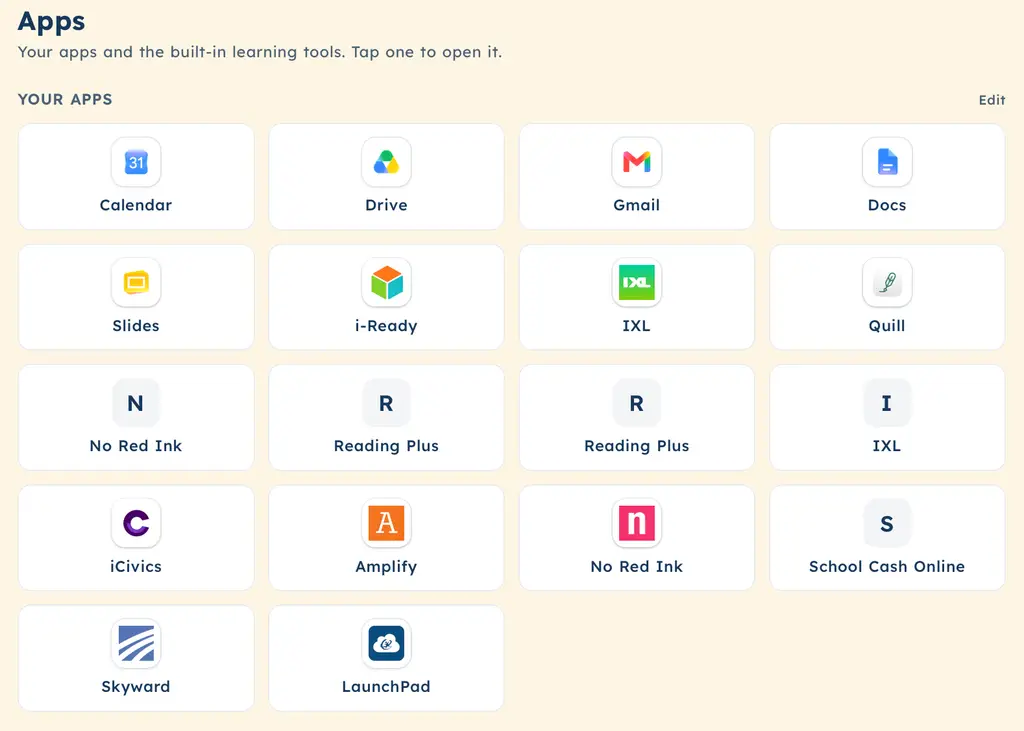
The Apps widget gives you quick access to the platforms and tools you use for school.
If you need an app that isn’t already listed, select View All, then Edit. Scroll to Add Your Own, enter the app name and web address, and save.
Now your favorite school tools are just a click away.

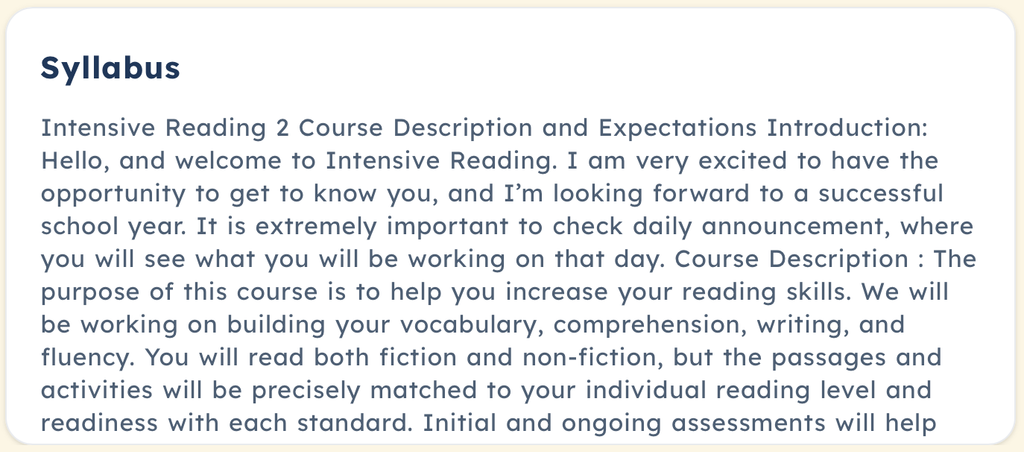
Keep your teacher’s expectations close at hand. The Syllabus widget gives you an easy-to-find place for important class information, expectations, policies, and your course syllabus—so you don’t have to search through different platforms to find it.
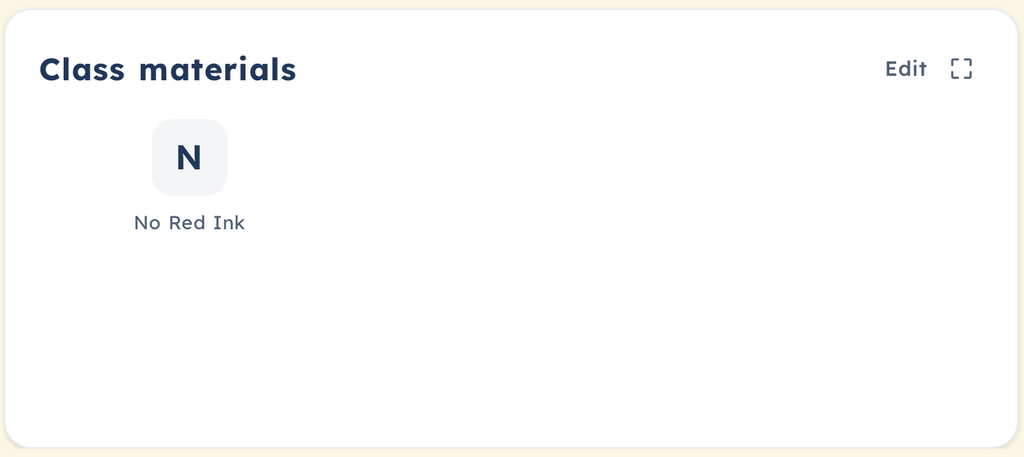
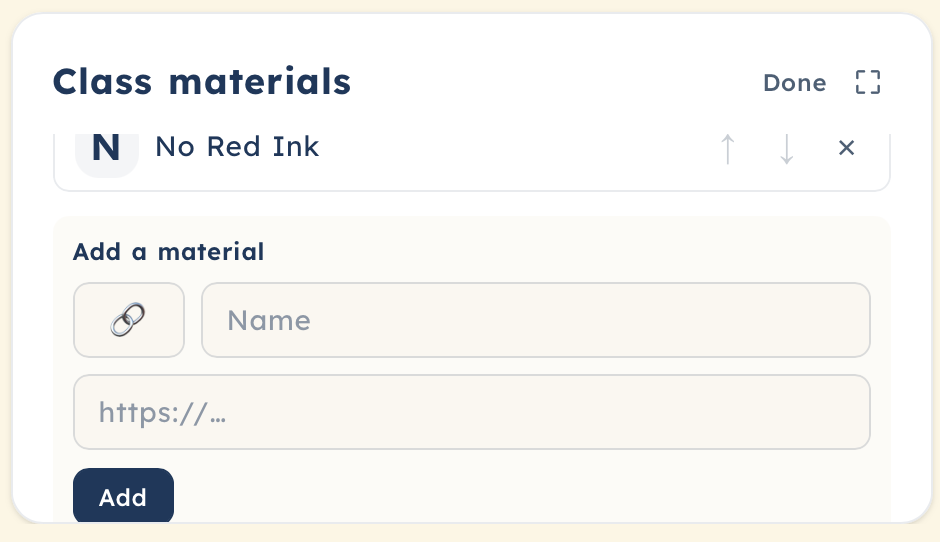
Need a specific website, resource, or learning tool for a class? The Class Materials widget lets you save links to the tools you use for that specific class. Keep everything you need for learning right where you need it—organized by class and easy to access.
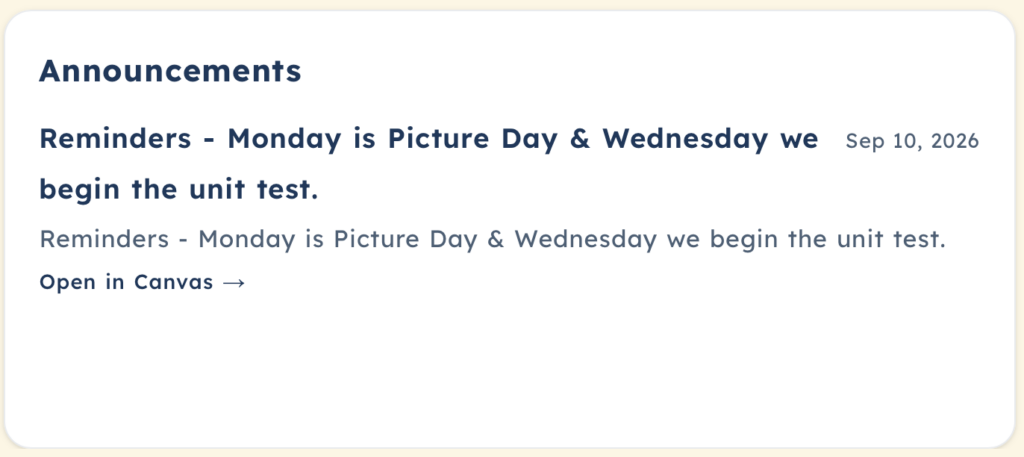
Never miss an important update from your teacher. The Class Announcements widget brings your class announcements into one easy-to-find place, so you can quickly see important reminders, updates, and information about what’s happening in your class.
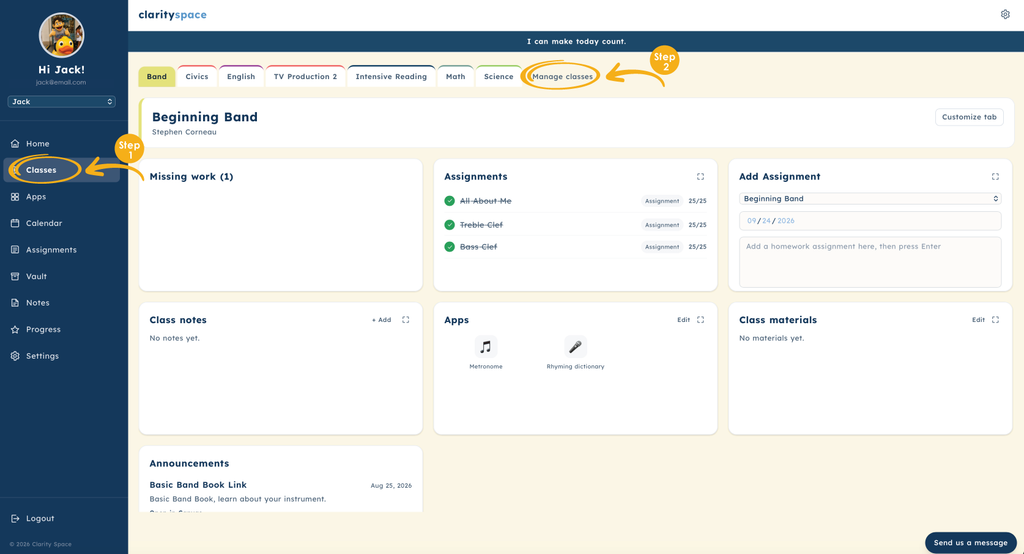
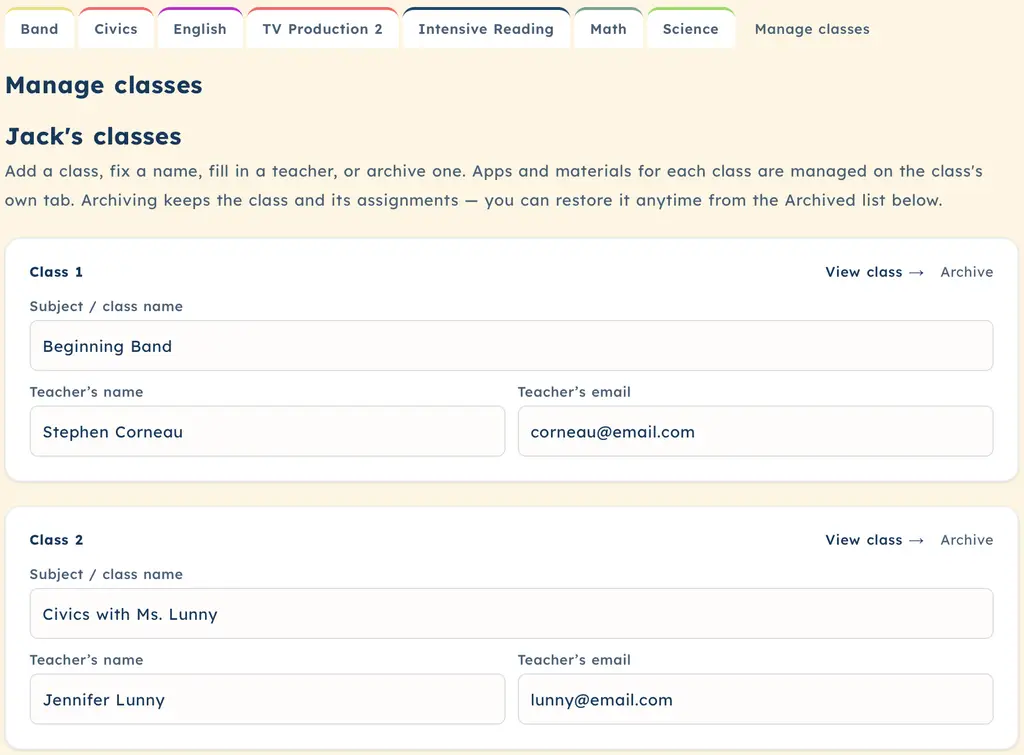
Your Classes Dashboard makes it easy to keep your class information accurate and up to date. Add each teacher’s name and email address, edit class titles, or add and remove classes whenever your schedule or needs change. With everything organized in one place, you can personalize your dashboard and make sure your class information works for you.
Every Clarity Space® class dashboard is unique, based on the information and criteria provided by each teacher. That means some class dashboards may include a syllabus, announcements, or other resources, while others may not.
Clarity Space® brings the important pieces of your school day together in one organized space. Instead of jumping between different platforms or trying to remember what you’ve completed, what’s coming up, and where to find what you need, your dashboard helps keep it all within reach.
Take a few minutes to explore your dashboard, discover what each widget does, and make Clarity Space® work for you.
Less searching. Less stress. More clarity.