
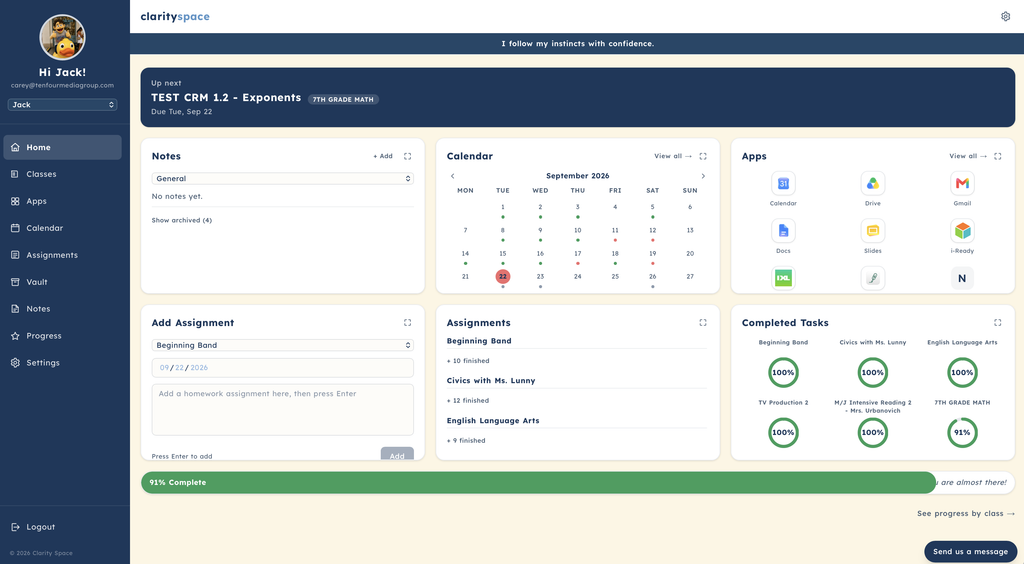
Welcome to your Clarity Space® Home Dashboard! Your dashboard is designed to give you a clear, organized view of your academic life—all in one place. With six helpful widgets, you can keep track of assignments, take notes, access important apps, and quickly see where you stand in each class.
Here’s a closer look at what each widget can do for you.
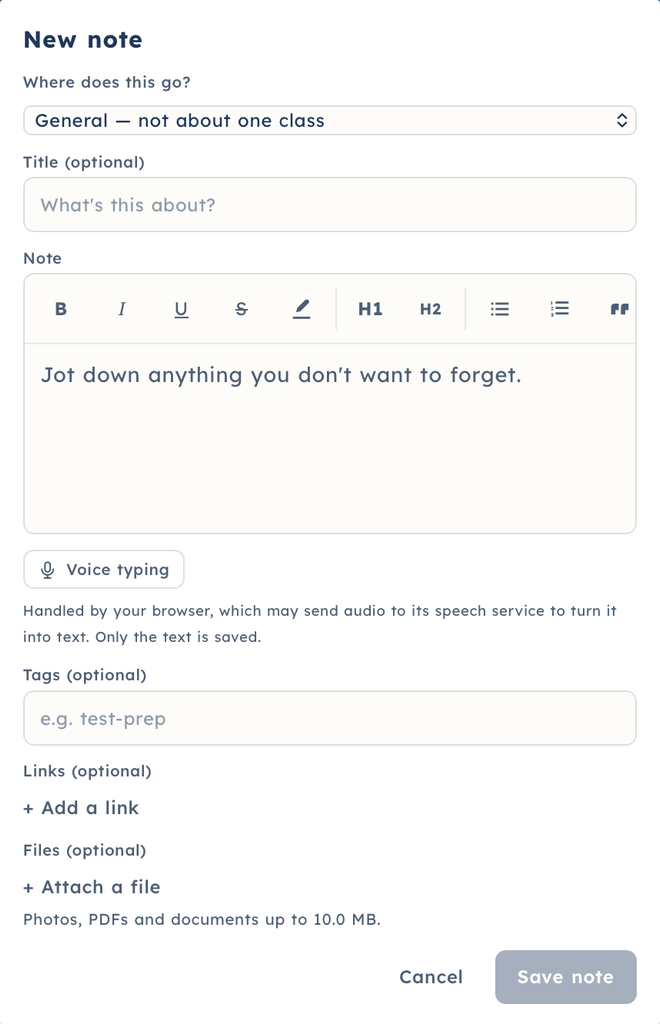
The Notes widget gives you a convenient place to capture important information from each class. Simply select + Add to create a new note.
You can choose the class, add a title or topic, and write your notes—or use the talk-to-text feature to capture your thoughts without typing. You can also add tags to make your notes easier to find later, attach a link that you’re referencing, or upload a file.
Whether you’re taking notes during class or saving something important to review later, the Notes widget helps keep your information organized and accessible.
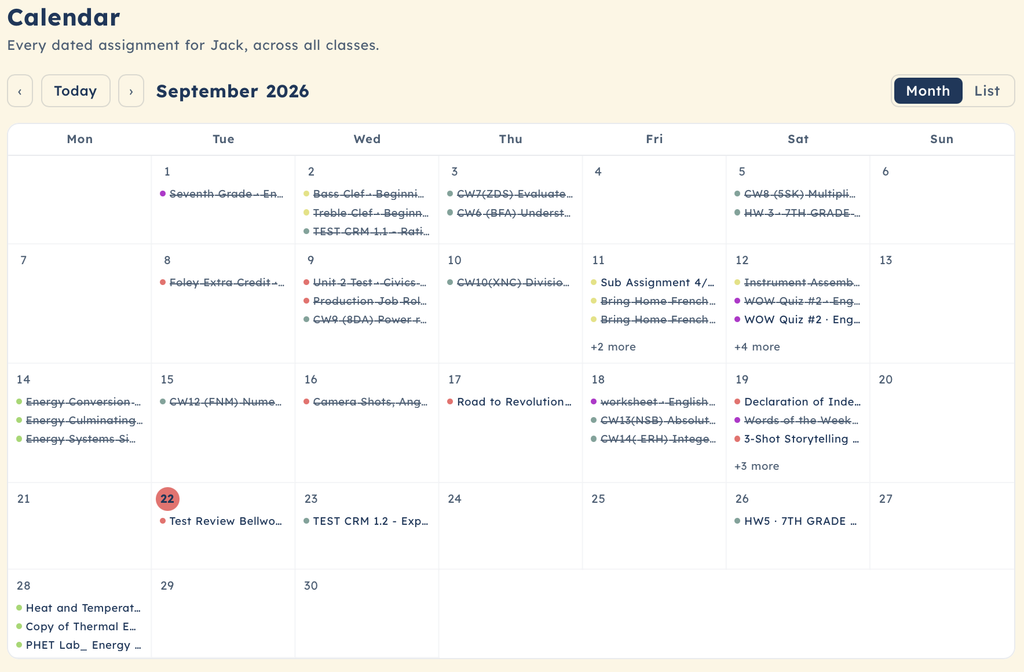
The Calendar widget gives you an easy way to see your assignments at a glance. You can view assignments that have been completed as well as assignments that are still due.
Want to see everything? Simply select View All to access your full calendar and get a bigger picture of what’s coming up.
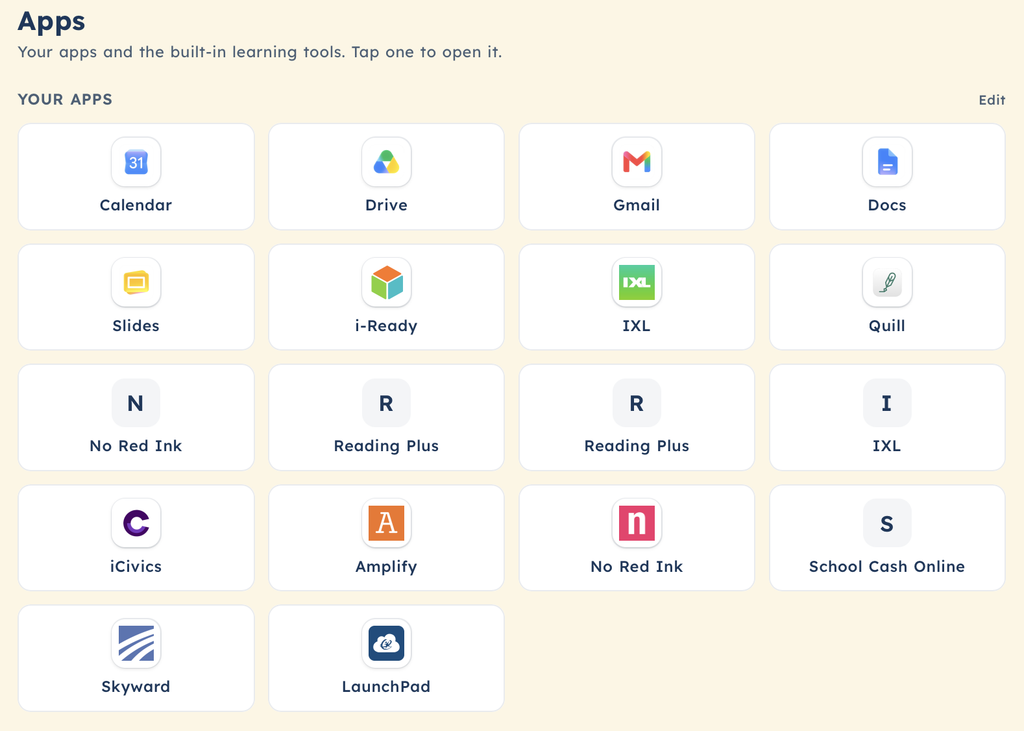
The Apps widget brings together the apps and platforms you need for school based on the tools your teachers have requested.
If you don’t see an app you need, simply select View All and then choose Edit. Scroll down to the Add Your Ownsection, enter the name and web address of the app, and save your changes.
Now you have quick access to the tools you need without having to search for them every time.

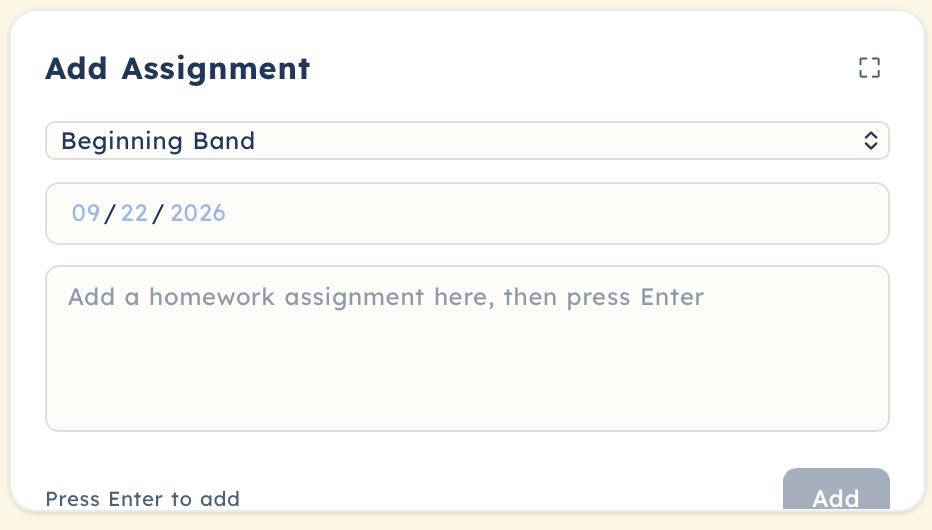
Sometimes an assignment doesn’t appear on your assignment list. That’s where the Add Assignment widget comes in.
Simply select the class, enter the due date and add the assignment details. Then select Add, and the assignment will be added to your Assignments widget.
It’s an easy way to make sure an assignment you know about doesn’t get overlooked.
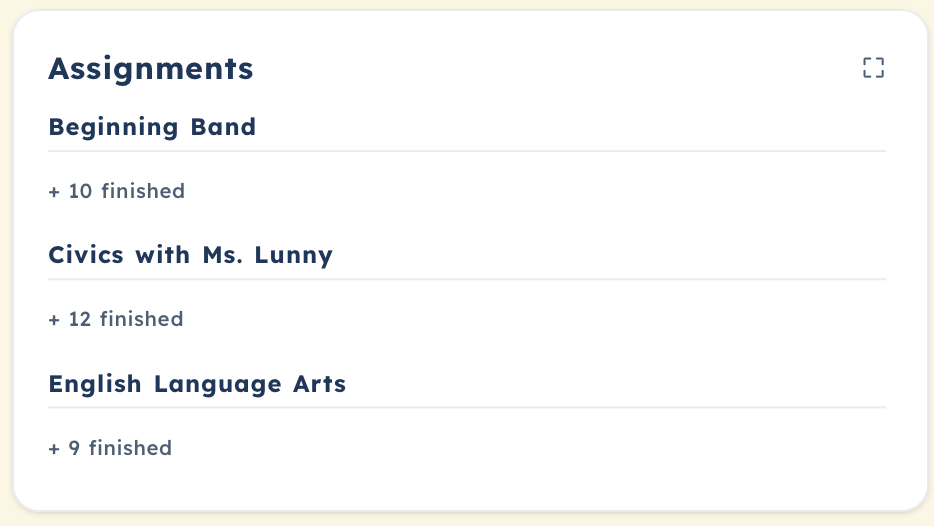
The Assignments widget is where you’ll find a breakdown of the assignments associated with each class. Color coding helps you quickly understand the status of your work without having to read through every assignment.
With a quick glance, you can see what you’ve completed, what’s been graded, and where you may need to pay attention.
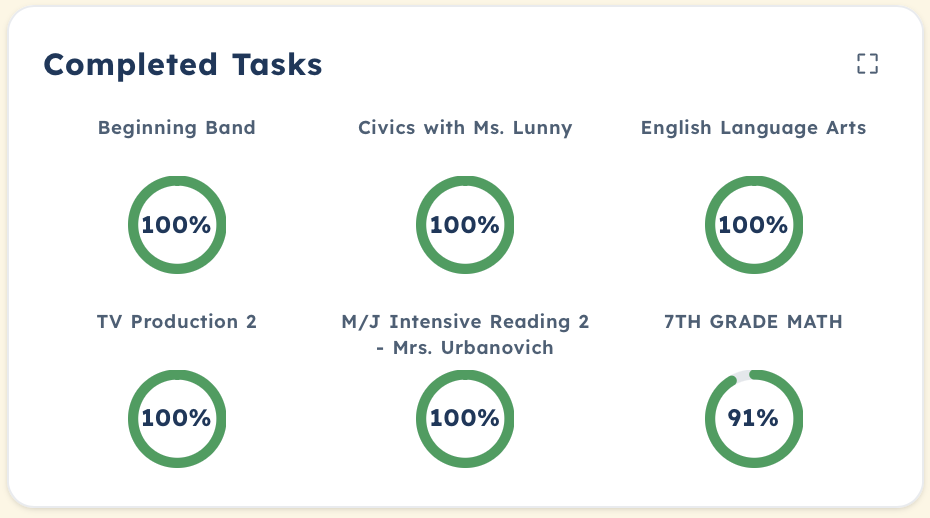
The Completed Tasks widget gives you a visual snapshot of your progress in each class.
Using an infographic-style display and status bars, you can quickly see how you’re doing across your classes without having to dig through individual assignments.
It’s designed to give you a simple answer to an important question:
“Where do I stand?”
Your Clarity Space® dashboard is designed to bring the information you need together in one convenient place. From taking notes and adding assignments to accessing your school apps and checking your progress, each widget has a purpose.
Instead of searching through multiple platforms to figure out what needs your attention, your dashboard gives you a clearer picture of what you’ve done, what’s coming up, and what to focus on next.
Explore your dashboard, get familiar with each widget, and make Clarity Space® work for you.
One calm place for everything school.