
Whether your student meets with a tutor in person, remotely, or a combination of both, having a clear picture of what’s happening in a particular class can make tutoring more focused and productive.
With Clarity Space®, you can give your tutor access to the specific class they’re helping with—without giving them access to your student’s entire account.

Tutors often need more than just a student’s latest test score to understand where they are academically. Having access to current assignments and grades gives tutors valuable insight into what your student is working on, what may be coming up, and where additional support may be needed.
Instead of spending valuable tutoring time trying to figure out:
Your tutor can have that information available directly in Clarity Space®.
This can be especially helpful with remote tutoring, where the tutor may not have the same opportunity to see what’s happening in the classroom. But even for an in-person tutor, having access between sessions can help them prepare and make each tutoring session more productive.
You don’t have to share your entire Clarity Space® account.
You can choose the specific class your tutor is helping with and give them read-only access to that class.
For example, if your student is receiving math tutoring, you can give the math tutor access to Math only. Their other classes and private information remain protected.
Step 1: Go to Settings
Log in to Clarity Space® and navigate to Settings.
Step 2: Find the Tutors Section
Scroll down until you see the Tutors section.
Step 3: Select a Class
Choose the specific class you would like to share with your tutor.
Step 4: Enter Their Email Address
Enter your tutor’s email address and send the invitation.
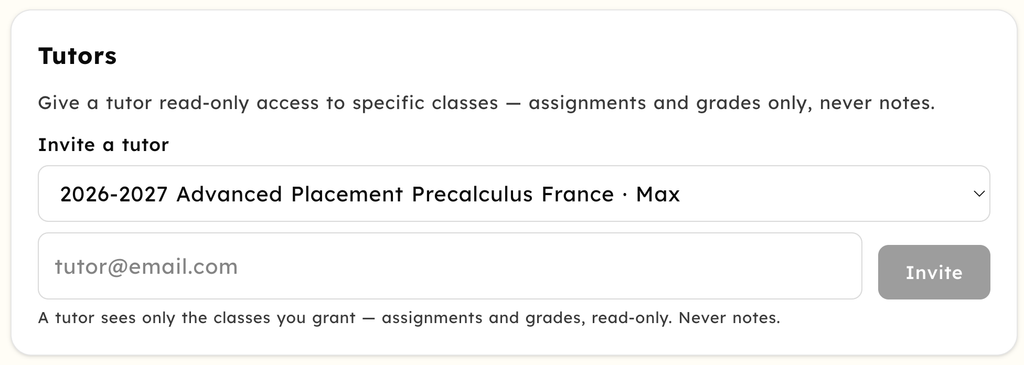
That’s it! Your tutor will receive an invitation to access the class you’ve selected.
Clarity Space® is designed to give you control over what information you share.
Tutors receive read-only access to the specific class or classes you choose. They can view relevant information such as:
Tutors cannot make changes to your student’s information, access other classes that haven’t been shared with them, or view your student’s private notes.
When everyone has a clearer understanding of where a student stands, tutoring can become more targeted and intentional.
Your tutor can see what your student is working on, identify areas that may need additional attention, and use that information to help plan future sessions. Parents and students can also feel more confident knowing that the tutor has access to the information they need—without giving them access to everything else.
Whether tutoring happens across the kitchen table or through a computer screen, Clarity Space® helps keep everyone on the same page.
It’s one more way Clarity Space® gives students and families the tools, organization, and support they need to stay on track and reach their academic goals.